AI Fashion Photography Tools
Choose a workflow based on the garment or product image you have and the output controls you need.
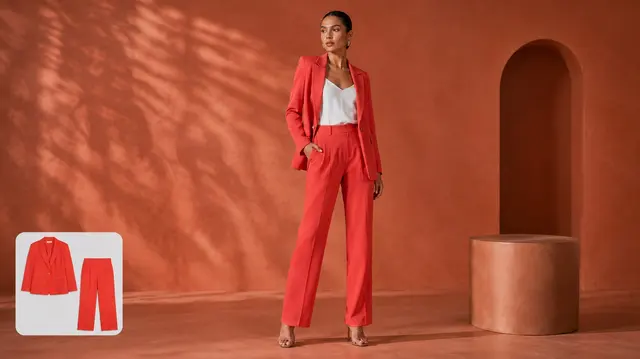
AI Fashion Model Photos
Create model-photo directions from garment images and a prompt.
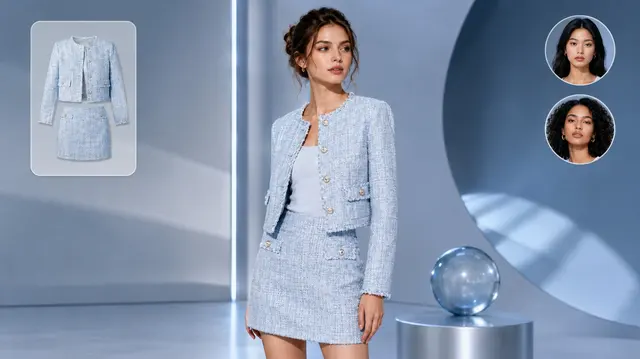
AI Virtual Try-On
Explore a garment-on-model presentation from one garment image and a prompt.
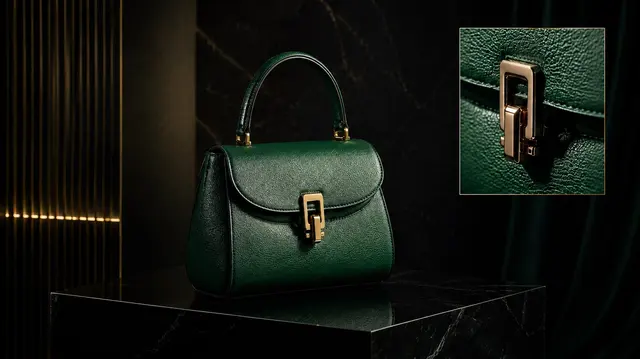
AI Product Photography
Create product-photo directions with marketplace, studio, lifestyle, or luxury choices.
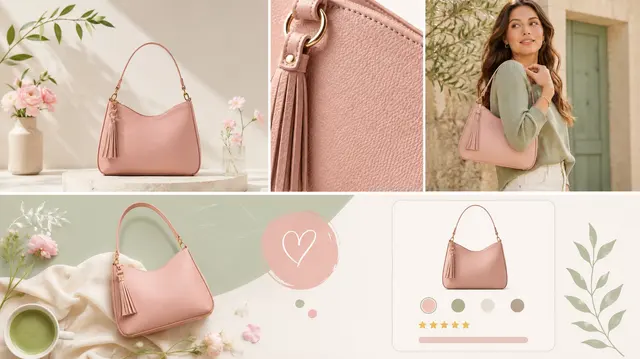
Product Image Sets
Create separate product-image options for ecommerce, ads, social content, or lookbooks.
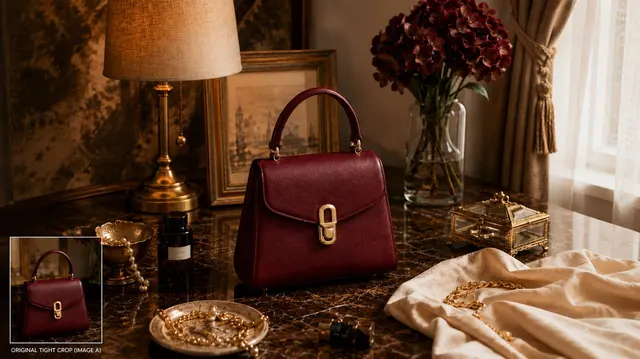
Product Background Generator
Create transparent, white, or light-gray product background outputs.
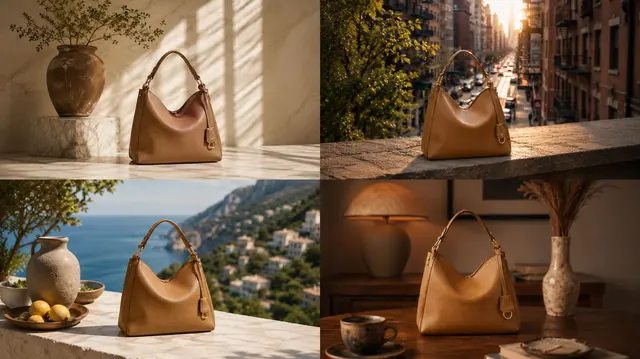
Product Photo Editor
Expand a product photo canvas by direction and aspect ratio.
Capabilities
- Choose the workflow for model presentation, virtual try-on, product images, image options, controlled backgrounds, or canvas expansion.
How it works
- 01Add the images and visible settings required by the selected tool.
Input tips
- Image counts, prompts, background choices, directions, ratios, and output options vary by tool.
- Review outputs and use the related tool when it matches the next task.
What to review
- Each workflow has its own image, setting, and output boundaries.
- Generated results should be reviewed before they are used or published.
Frequently asked questions
How do I choose a DrapeShot tool?
Choose the workflow for model presentation, virtual try-on, product images, image options, controlled backgrounds, or canvas expansion.
How should I prepare source images?
Follow the upload count shown by the selected tool and use clear source images where the garment or product is visible.
Which image models are currently available?
The current generation-model choices are GPT Image 2 and Nano Banana Pro.
How many credits does an image use?
The exact credit cost depends on the selected model and your active plan, and it is shown before generation.
Where can I review previous generations?
After a task starts, its batches appear in that tool's History. Sign in to view history saved to your account.
What can I do after reviewing an output?
Adjust the source images or settings and start another task, or open a related tool when it better matches the next step.