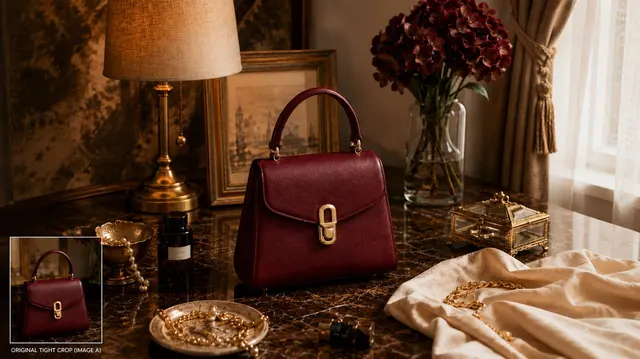
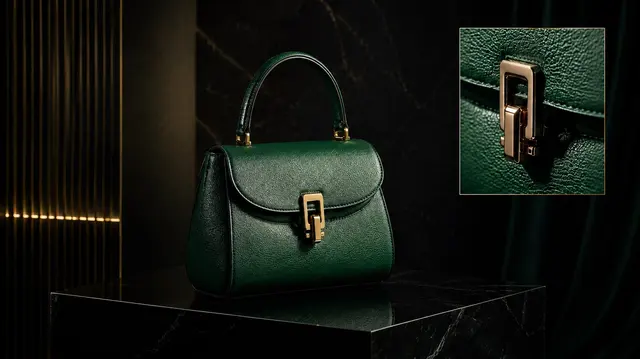
AI Product Photo Expander
2. Canvas direction
3. Output settings
AI will generate high-quality visuals based on your uploads and settings.
Excellent cases
Expand Product Photo Canvases with AI
Upload exactly one image, choose a canvas-expansion direction and aspect ratio, then select one, two, or four outputs.
Capabilities
- Accepts exactly one image.
- Offers canvas-expansion direction choices.
- Offers aspect-ratio and one, two, or four output controls.
How it works
- 01Upload one image.
- 02Choose a canvas direction and ratio.
- 03Select an output count before generating.
Input tips
- Use one image with the subject clearly visible.
- Choose the direction where you need more canvas.
- Review the expanded result before publishing.
What to review
- This workflow expands the canvas; it does not provide masking, retouching, text, layout, or pixel-editing controls.
- It accepts exactly one image.
Frequently asked questions
What source does the photo editor accept?
Upload exactly one reference image with the subject clearly visible.
Which canvas directions can I choose?
Choose left and right, top and bottom, all sides, left, right, top, or bottom.
Which aspect ratios are available?
The ratio control offers 1:1, 3:4, 4:5, 9:16, and 16:9.
What edit type does this workflow perform?
The current workflow expands the canvas in the selected direction; it does not provide masking, retouching, text, layout, or pixel-editing controls.
How many credits does a photo edit cost?
The exact credit cost depends on the selected model and your active plan, and it is shown before generation.
What should I check around the expanded edges?
Inspect transitions, repeated textures, perspective, lighting, shadows, and the original image boundary before using the result.